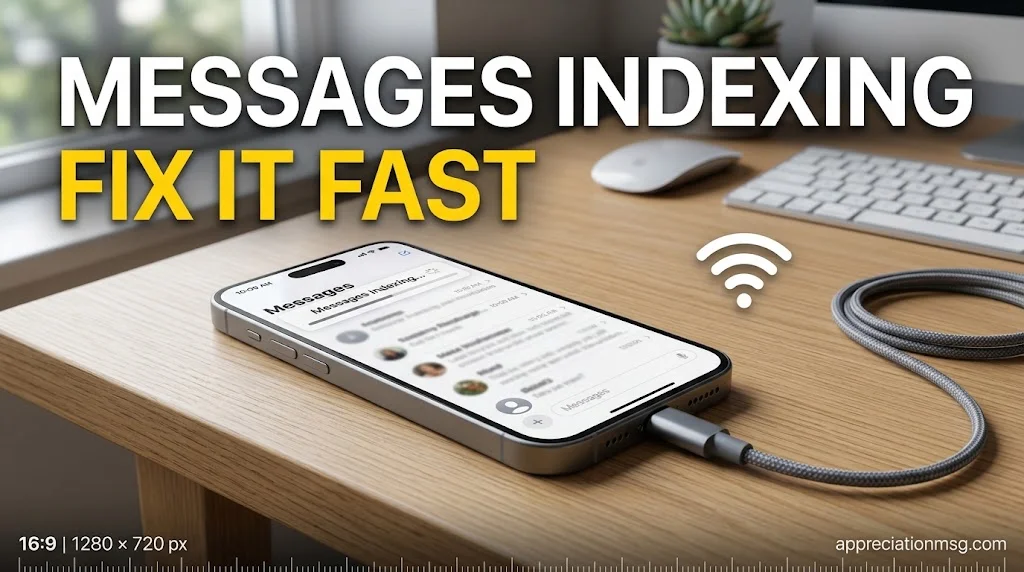
Your messages indexing alert shows up after an update or a phone switch. Then your photos and links vanish from the Info tab.
Don’t panic. This is usually normal. This guide explains why iPhone message indexing happens and how to fix message indexing fast.
Table of Contents
What Is Messages Indexing on iPhone?
Indexing is how your iPhone sorts your chat history. Think of it like a librarian filing books so you can find them later.
Apple says <a href=”https://support.apple.com/en-in/148295″>shared links, photos, and more appear once Messages finishes indexing</a>. Until then, those items stay hidden.
It often starts after
an iOS update
a move to a new iPhone
a restore from backup
turning on Messages in iCloud
When sharing meaningful content, it’s important to remember that some topics touch readers on a deeply emotional level. If you’re looking for the right words to comfort someone experiencing a loss, these heartfelt condolence messages can help you express sympathy, offer support, and bring comfort during difficult times.
How Long Does Messages Indexing Take?
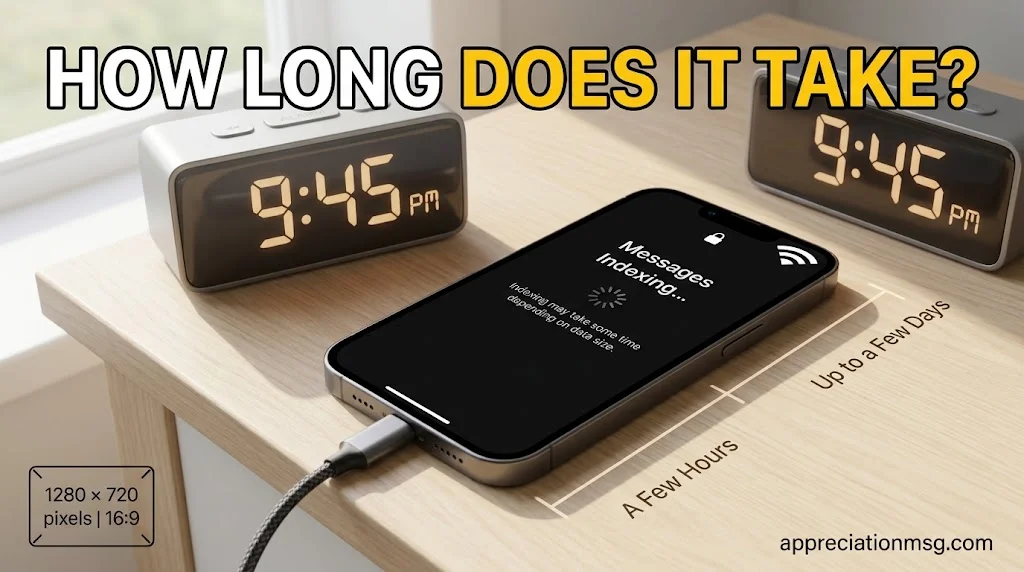
There is no fixed time. It depends on your Messages data size and what runs in the background.
Apple says the process can finish quickly or <a href=”https://support.apple.com/en-in/148295″>take up to a few days</a>. Real users report similar results. One person with about 23 GB of Messages data finished within an hour, according to a <a href=”https://discussions.apple.com/thread/250703976″>thread on Apple Support Communities</a>. Another with 18 GB let it run overnight.
Signs of progress
Photos return in some chats first.
Older shared links and photos slowly fill the Info tab.
Signs of trouble
Nothing changes after several days.
The Message indexing stuck alert never clears.
How to Speed Up Message Indexing
A few small habits help your iPhone work faster. Most take under two minutes.
How can I speed up the indexing of my iPhone messages?
Apple says indexing finishes faster when the phone is <a href=”https://support.apple.com/en-in/148295″>locked and connected to Wi-Fi or Ethernet</a>. Data transfers also need Wi-Fi.
Try this checklist
Plug in your iPhone and leave it locked overnight.
Stay on steady Wi-Fi. Avoid weak networks.
Free up iPhone storage so the phone has room to work.
Update to the latest iOS version.
Skip big downloads or app updates while it runs.
Don’t force-quit or restart again and again.
Check your iCloud storage too. Free accounts get 5 GB, and large Messages data can fill it quickly.
How to Fix Message Indexing Issues on iPhone
Waited long enough? Start with the easiest fix and move down the list.
How to fix messages finish indexing on iPhone?
Apple’s own fix is to restart the process by turning iCloud for Messages off and on:
Open the Settings app and tap your name.
Tap iCloud.
Tap Messages.
Turn Use on this iPhone off, then on again.
Still stuck?
Other users report these steps helped. Results vary, so treat them as options, not promises:
Go to Settings > Siri & Search > Messages. Turn off the toggles. Power off for two minutes. Turn them back on. Wait up to 24 hours.
Choose Download and Keep Originals in iCloud Photos if you have space.
Buy more iCloud storage if your Messages data is large. The 50 GB plan costs under a dollar a month in the US.
After a restore, turn on iCloud right away. One user said this brought back messages quickly.
A computer backup may not include iMessages already stored in iCloud. So a restore from a Mac won’t always fix the issue.
Nothing worked? Contact Apple Support or book a Genius Bar visit.
FAQs
What does it mean if your messages are indexing?
Your iPhone is organizing saved chats so it can show shared photos and links. Your messages are not lost. The alert clears once the process ends.
How long does it take iMessages to finish indexing?
It can take a few hours or up to a few days. Larger Messages data and busy background tasks slow it down. Wi-Fi and a locked screen speed it up.
How to fix messages finish indexing on iPhone?
Wait on Wi-Fi first. Then go to Settings, tap your name, tap iCloud, tap Messages, and turn Use on this iPhone off and on. Contact Apple Support if the alert stays.
How can I speed up the indexing of my iPhone messages?
Keep your iPhone locked, plugged in, and on Wi-Fi. Free up storage. Update iOS. Avoid heavy downloads. Don’t restart repeatedly.
Conclusion
Message indexing is a normal step after updates and phone switches. Give it time on Wi-Fi, then use the iCloud off-and-on fix if it stalls. Next time, back up first and check your iCloud storage before you switch phones. That small step prevents most message indexing issues.
A R Gujjar is a passionate writer sharing appreciation, heartfelt, funny, and thank-you messages to help readers express their feelings with meaningful words.


















1 thought on “Messages Indexing: Tips to Fix Issues and Speed Up Indexing”